Reverse Engineering the Intune Portal: The AI-Enabled Cloud PC Report
In this article we will get a Windows 365 report from Microsoft Graph that is not in the Graph documentation the AI-enabled Cloud PC report.
The portal shows that report every time you open it, so an API for it must exist. It is just not documented anywhere. The method to find it works in general: whatever the Intune portal shows you, it got from somewhere, and for Windows 365 that somewhere is almost always graph.microsoft.com. Open DevTools, read the request, and replay it from your own code.
Prerequisites
I assume you're familiar with Microsoft Graph, Intune and Cloud PCs, and that you've opened browser DevTools at least once.
What we need:
- An Intune tenant with a few Cloud PCs, ideally in different AI-enablement states.-
CloudPC.Read.All(least privileged) orCloudPC.ReadWrite.All, delegated or application. - Chrome DevTools. Any Chromium browser works the same way, the screenshots below are Chrome.
One warning before we start. Everything here lives in `/beta`, and on top of that, it is a call I captured from the portal's network traffic, not an API that Microsoft has documented. Portal traffic can change with any portal release. Do not use it in anything you cannot fix quickly, and check it again if it stops working.
The report in the portal
Intune -> Reports -> Windows 365 overview -> AI-enabled Cloud PC report:
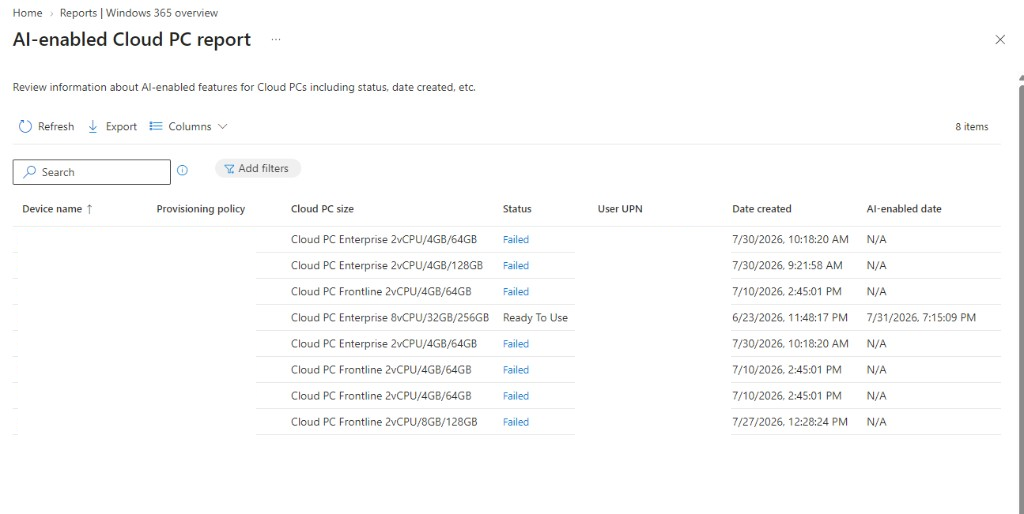
Eight Cloud PCs, statuses Failed and Ready To Use, an Export button. The product docs describe this screen and tell you to validate AI enablement here. What they don't give you is a way to get the same eight rows into a script.
Step 1. Catch the call
Open DevTools before you open the report, go to Network, filter by graph.microsoft.com, then click into the report. One POST shows up:
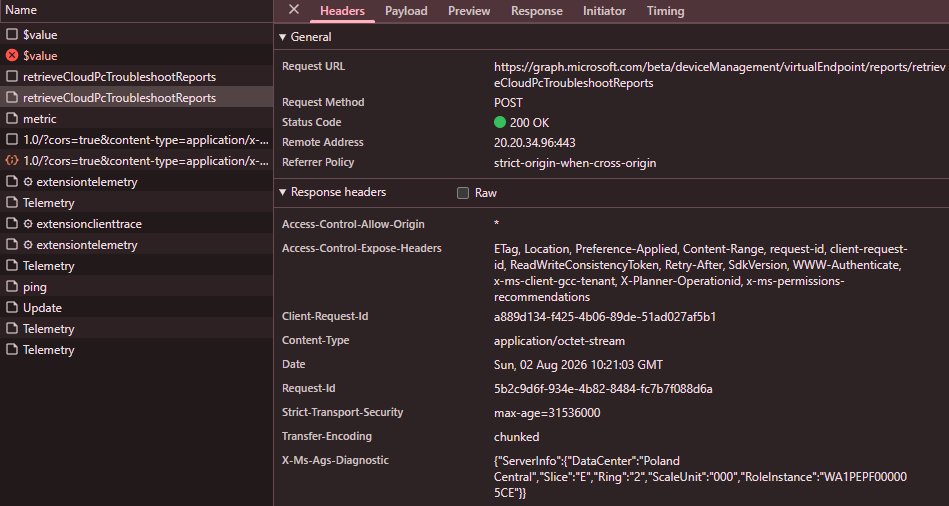
POST /beta/deviceManagement/virtualEndpoint/reports/retrieveCloudPcTroubleshootReports HTTP/1.1
Host: graph.microsoft.com
Accept: application/octet-stream
Content-Type: application/json
Authorization: Bearer <redacted>
Content-Length: 117
{
  "reportName": "getAIEnabledStateCPCReport",
  "top": 50,
  "skip": 0,
  "search": "",
  "filter": "",
  "orderBy": ["ManagedDeviceName"]
}
117 bytes, and the important part is in the first line of the body.
Step 2. Check it against the docs
This is the step people skip, and it's the one that tells you what you actually found.
The action itself is fine. retrieveCloudPcTroubleshootReports is documented in Graph beta, returns a Stream, and asks for exactly the permissions I listed above. Nothing secret about it.
The reportName is different. It's typed as cloudPCTroubleshootReportType, an evolvable enum with 35 documented report names. As of 2026-08-02, getAIEnabledStateCPCReport is not one of them. It's not in the report types reference either, so there's no published column list for it, and it's not in aka.ms/graph/beta/openapi.yaml.
That last one explains the rest. Docs and every SDK are generated from that OpenAPI file, which is generated from a weekly capture of the service metadata. The portal talks to the service directly, so it can use a new enum member as soon as the service accepts it. The spec catches up later or, in this case, not yet.
Heads up: uppercase and lowercase matter in the request. It'sgetAIEnabledStateCPCReportwith a lowercaseg, like every other member of this enum. Copy it carefully, if the service doesn't recognize the report name, you get a generic400error with nothing useful in it
So what we found is not a hidden endpoint. It is a documented endpoint with an undocumented argument. This difference matters, because it changes how you write the code you can keep the whole official request pipeline and only change one string.
Step 3. The response is a Stream
200 OK, Content-Type: application/octet-stream, Transfer-Encoding: chunked. That's normal for Cloud PC reports all of them return Stream but it means no @odata.context, no value array, and you can't use typed deserialization here. Read the bytes, then parse:
{
  "TotalRowCount": 8,
  "Schema": [
    { "Column": "CloudPCId", "PropertyType": "String" },
    { "Column": "UserId", "PropertyType": "String" },
    { "Column": "ManagedDeviceName", "PropertyType": "String" },
    { "Column": "ProvisioningPolicyName", "PropertyType": "String" },
    { "Column": "ServicePlanName", "PropertyType": "String" },
    { "Column": "State", "PropertyType": "String" },
    { "Column": "UserDisplayName", "PropertyType": "String" },
    { "Column": "UserPrincipalName", "PropertyType": "String" },
    { "Column": "ProvisionedDateTime", "PropertyType": "DateTime" },
    { "Column": "ProvisioningPolicyId", "PropertyType": "String" },
    { "Column": "AIEnabledDateTime", "PropertyType": "DateTime" },
    { "Column": "AIEnabledErrorCode", "PropertyType": "String" },
    { "Column": "ErrorMessage", "PropertyType": "String" },
    { "Column": "EngineeringAction", "PropertyType": "String" }
  ],
  "Values": [ /* rows, positional, aligned to Schema */ ]
}
Values is an array of arrays, matched to Schema by position - so never hardcode indexes; always match each value to its column.
The API gives you more than the grid shows. The UI shows seven columns; the response has fourteen. CloudPCId, UserId and ProvisioningPolicyId are the ones I care about, because they let you join this report to everything else under virtualEndpoint without matching on display names. ErrorMessage and EngineeringAction don't appear as columns at all - ErrorMessage only shows up when you click a Failed link.
Step 4. Where the statuses come from
The response gives you State as Failed or ReadyToUse, and AIEnabledErrorCode as a plain string like UnsupportedLicensePlan. My eight rows contained only two states and one error code. Is that the complete list? There is no enum in the docs to check.
Part of the answer is right there in the portal. Add filters -> State lists every value the grid can hold:
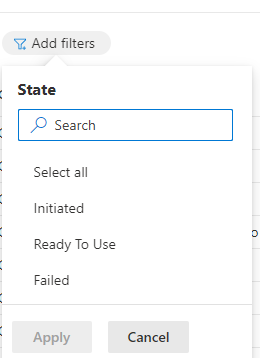
Three states, and one of them (Initiated) never appeared in my data. This check is worth doing first: it costs one click, and it shows you that the values in your data are not the full list.
What it doesn't tell you is which display name matches which value. Ready To Use with spaces is a label, ReadyToUse is what arrives in the State column, and nothing on screen connects the two. The filter also says nothing about error codes, because those only appear one at a time inside the Failed pane.
For both questions, go to Sources and search for a part of the feature name without the verb AIEnabledCloudPC instead of getAIEnabledStateCPCReport, or by state name. This takes you to the resource file the portal uses to render this exact screen:
Microsoft_Azure_CloudPC/UnifiedReporting/AIEnabledCloudPCReport/AIEnabledCloudPCResources.resjson
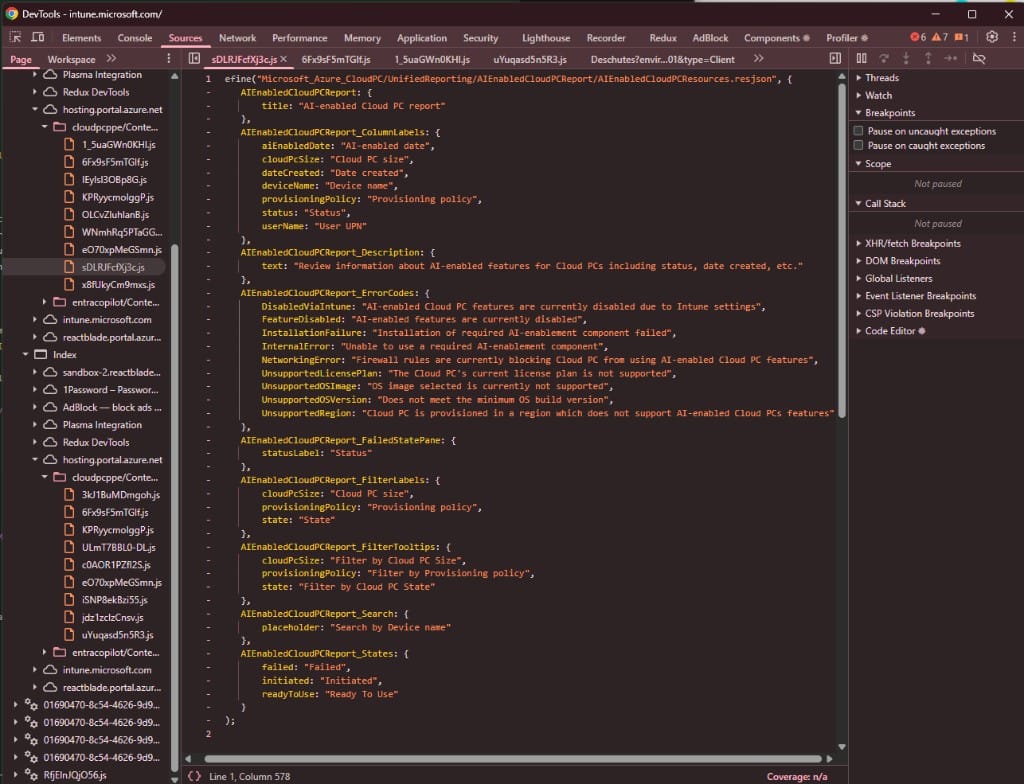
The states, with the mapping the filter dropdown wouldn't give you:
failed- UI label "Failed", value in theStatecolumn:Failedinitiated- UI label "Initiated", value in theStatecolumn:Initiated, by inferencereadyToUse- UI label "Ready To Use", value in theStatecolumn:ReadyToUse
I saw two of the three in real responses. Initiated probably follows the same rule as the other two the resjson key with the first letter capitalised but I never had a Cloud PC in that state, so treat it as a safe guess, not a fact.
And the complete error code list behind the Failed links:
DisabledViaIntune- AI-enabled Cloud PC features are currently disabled due to Intune settingsFeatureDisabled- AI-enabled features are currently disabledInstallationFailure- Installation of required AI-enablement component failedInternalError- Unable to use a required AI-enablement componentNetworkingError- Firewall rules are currently blocking Cloud PC from using AI-enabled Cloud PC featuresUnsupportedLicensePlan- The Cloud PC's current license plan is not supportedUnsupportedOSImage- OS image selected is currently not supportedUnsupportedOSVersion- Does not meet the minimum OS build versionUnsupportedRegion- Cloud PC is provisioned in a region which does not support AI-enabled Cloud PCs features
Nine codes, and my tenant had produced exactly one. Two minutes in Sources is faster than waiting for the other eight to appear on their own.
The values in the response are PascalCase (ReadyToUse), the resjson keys are camelCase (readyToUse), and the labels have spaces. Three forms of the same three values, and only one of them is what you compare against in code.
Step 5. Replay it from the beta SDK
Nothing so far required leaving the browser. This part does.
Here is the point I really want to make: you don't need a separate HttpClient and a hand-written token cache for this. The endpoint is in beta, Microsoft.Graph.Beta already points at /beta, and the SDK is built on Kiota. That means every generated method is only a thin wrapper over a request adapter that you can call yourself. Undocumented request, existing credentials, same client.
await graph.DeviceManagement.VirtualEndpoint.Reports
    .RetrieveCloudPcTroubleshootReports
    .PostAsync(body);
but body.ReportName is a generated C# enum, and our value is not in it. So the typed path is blocked by one string.
So go one level lower and build the request yourself:
using System.Text;
using System.Text.Json;
using Azure.Identity;
using Microsoft.Graph.Beta;
using Microsoft.Graph.Beta.Models.ODataErrors;
using Microsoft.Kiota.Abstractions;
using Microsoft.Kiota.Abstractions.Serialization;

var credential = new ClientSecretCredential(tenantId, clientId, clientSecret);
var scopes = new[] { "https://graph.microsoft.com/.default" };
var graph = new GraphServiceClient(credential, scopes);

const string payload = """
{"reportName":"getAIEnabledStateCPCReport","top":50,"skip":0,"search":"","filter":"","orderBy":["ManagedDeviceName"]}
""";

var request = new RequestInformation(
    Method.POST,
    "{+baseurl}/deviceManagement/virtualEndpoint/reports/retrieveCloudPcTroubleshootReports",
    new Dictionary<string, object> { ["baseurl"] = graph.RequestAdapter.BaseUrl! });

request.Headers.Add("Accept", "application/octet-stream");
request.SetStreamContent(new MemoryStream(Encoding.UTF8.GetBytes(payload)), "application/json");

var errorMapping = new Dictionary<string, ParsableFactory<IParsable>>
{
    ["XXX"] = ODataError.CreateFromDiscriminatorValue
};

await using var stream = await graph.RequestAdapter
    .SendPrimitiveAsync<Stream>(request, errorMapping);

using var report = await JsonDocument.ParseAsync(stream!);
That is the same SendPrimitiveAsync<Stream> that the generated PostAsync calls internally you just give it a body that the code generator would not let you build. Everything above it still works: Azure.Identity credentials, the auth middleware, the retry handler with its 429/503 backoff, BaseUrl, telemetry headers. You lose the typed request body and the typed response, but for a Stream endpoint you never had them anyway.
The same approach works when the path is not in the SDK at all.UrlTemplateis just a string, point it at whatever segment you saw in the Network tab, chooseSendPrimitiveAsync<Stream>,SendAsync<T>orSendNoContentAsyncto match the response, and keep the rest of your client as it is.
Parsing is the boring part, but positional rows deserve a small helper instead of index numbers spread around the code:
var root = report.RootElement;
var columns = root.GetProperty("Schema")
    .EnumerateArray()
    .Select(c => c.GetProperty("Column").GetString()!)
    .ToList();

foreach (var row in root.GetProperty("Values").EnumerateArray())
{
    var cells = columns
        .Select((name, i) => (name, value: row[i].ToString()))
        .ToDictionary(x => x.name, x => x.value);

    if (cells["State"] == "Failed")
        Console.WriteLine($"{cells["ManagedDeviceName"]}: {cells["AIEnabledErrorCode"]}");
}
The AI-enabled report is a small example: one POST, one undocumented string, fourteen columns. But the gap behind it is not small. Docs and SDKs are generated from the service metadata, and the portal is not